Skip to content
ClairGet Clair

For Claude Code, on Wear OS and Android

Answer Claude Code from your wrist

When Claude Code stops to ask for something, Clair puts it on your watch and phone. Allow a command, pick an answer or approve a plan from there, and the session keeps working while you're away from your desk.

Install the agent on your computer

curl -fsSL https://claircode.app/install.sh | sh

The agent keeps running in the background and starts again when you sign in. Then run clair pair and scan the code with Clair on your phone.

Independent app, not made by Anthropic.

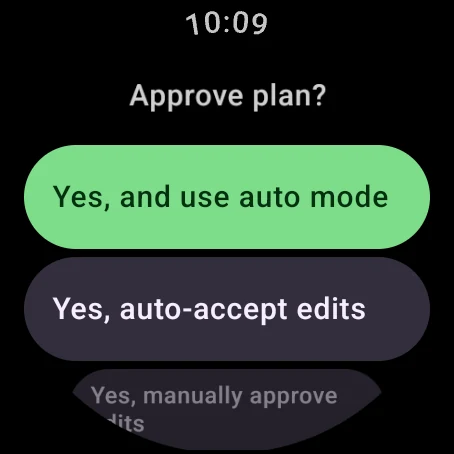
A plan review on a Wear OS watch: Approve plan? above the choices "Yes, and use auto mode" and "Yes, auto-accept edits", with "Yes, manually approve edits" below them.

What reaches your wrist

Claude Code holds a session until you answer. Clair brings the question to your watch with the detail you need to decide, and sends your answer straight back.

Permission prompts

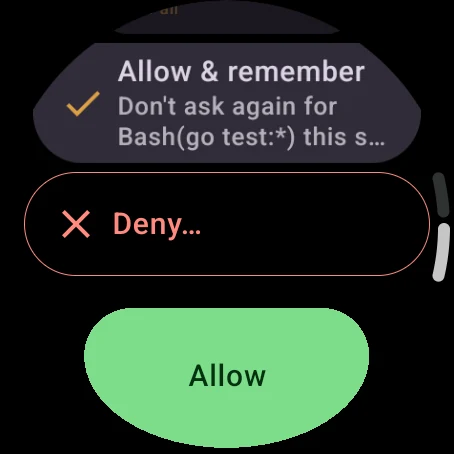
See the exact command or edit before you allow it. Allow it once or for the whole session, or accept the rule Claude Code suggests, like every go test run, so it stops asking. Deny it with a reason you type or dictate, and Claude reads why.

The watch's answers for a Bash prompt: Allow, Allow and remember for go test commands, and Deny with a reason.

Questions

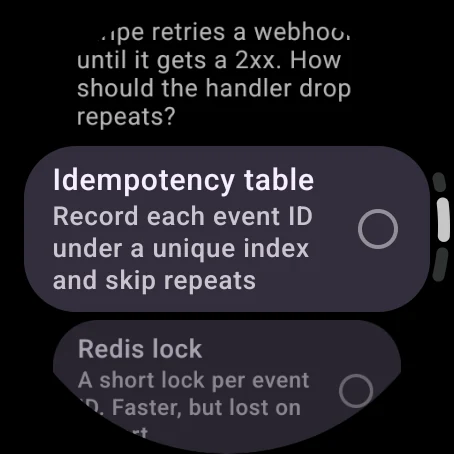
When Claude asks you to choose, the options arrive with their descriptions. Scroll them with the crown, pick one or several, or type or dictate an answer of your own.

A question from Claude on the watch, offering an idempotency table or a Redis lock, each with a short description.

Plan reviews

Read the plan on your watch or phone, then approve it the way the terminal would: switch to auto mode, auto-accept edits, or approve each edit yourself. Or send it back with notes on what should change.

A plan for an offline workout log on the phone, with buttons to approve it with auto mode, auto-accept edits, approve edits manually, or keep planning.

Your sessions at a glance

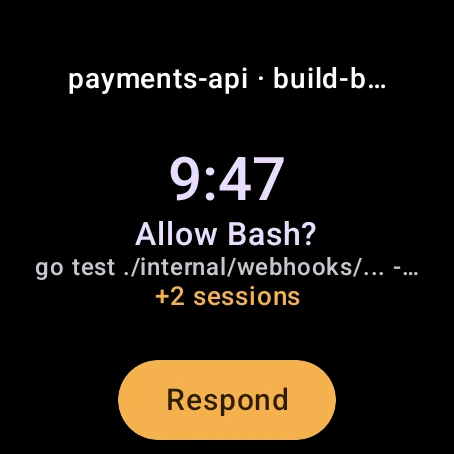
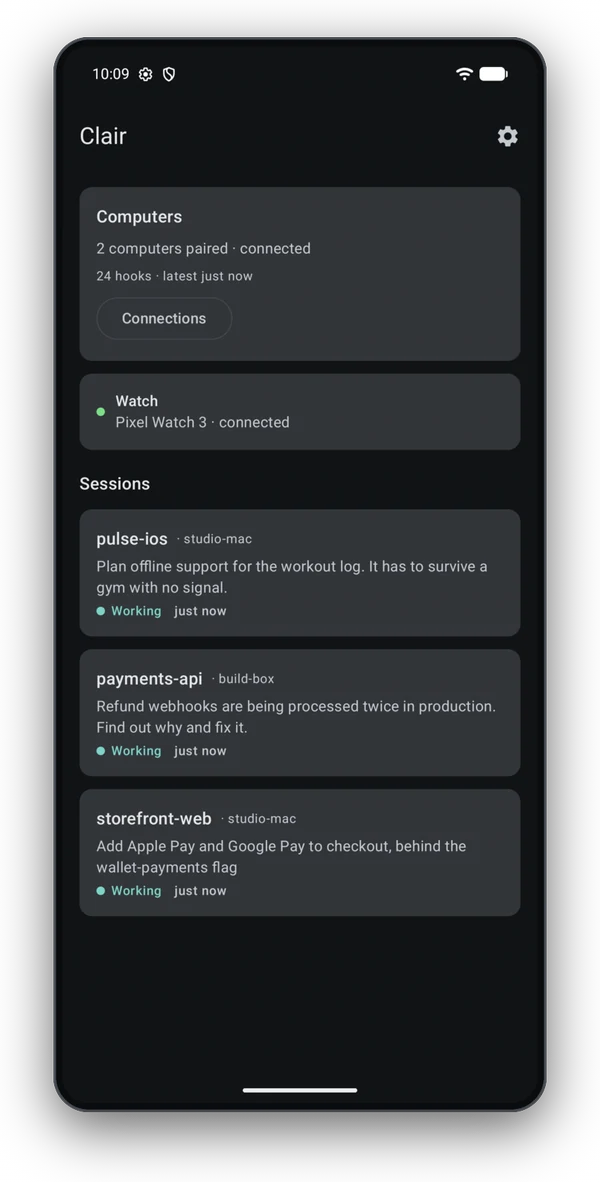
A tile shows what needs you next, what each session is doing, and how its last turn went. A complication on your watch face counts the sessions waiting on you, and its ring shows your token usage in the current five-hour window. On Wear OS 6 or later, Clair's own watch face adds dials for your weekly limit and your session's context window.

Everything the tile, complication and watch face show
The Clair tile: a waiting Bash prompt in the payments-api session, two more sessions, and a Respond button.

Leave your phone behind

Go for a run with just your watch. If it has Wi-Fi or LTE, prompts keep reaching it over the internet when your phone is out of Bluetooth range, and your answers go back the same way. The phone still does the work from wherever you left it, so it has to stay on and online. The watch's settings show whether it's connected nearby or over the internet.

Using the watch away from your phone
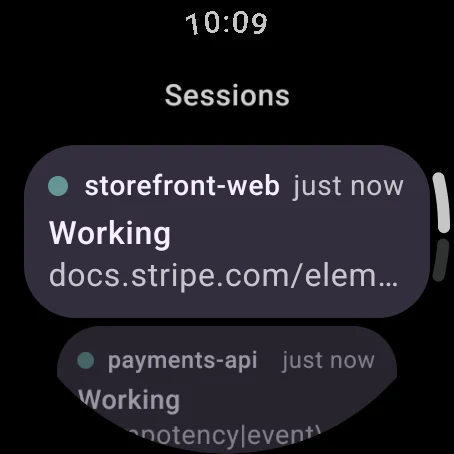
The watch's Sessions list: storefront-web and payments-api, both Working, each updated just now.

A phone that covers for the watch

Every prompt also reaches the phone, with Allow and Deny right in the notification. Choose whether the phone alerts you every time, only when no watch is reachable, or never.

Everything the phone app does
A Clair notification on the phone asking whether Bash may run go test, with Allow, Allow for session and Deny buttons.

First answer wins

Clair sends prompts to your watch and phone, and they still show in your terminal. Answer wherever you are, and the first answer settles it. The other two clear themselves.

Move between the keyboard and your watch or phone whenever you like. Approve a command from the couch, sit back down, and answer the next one in the terminal. There's nothing to switch over.

See it in 30 seconds

Set up in a few minutes

There are three pieces: the app on your phone and watch, a small agent on your computer, and one pairing between them.

  1. Get the app

    Install Clair on your Android phone, and on your Wear OS watch if you have one. The phone walks you through notifications and pairing.

  2. Install the agent

    The Clair agent runs on the computer where you use Claude Code. It passes each prompt to your phone, sealed, and brings your answer back.

  3. Pair with one command

    Run clair pair, scan the code it shows with your phone, confirm the phone's name in the terminal, and restart Claude Code.

Read the full setup guide

Sealed on your computer, opened on your phone

Your computer and phone don't have to share a network. A laptop on office Wi-Fi reaches a phone on mobile data through Clair's relay, and the relay only ever handles sealed messages. The agent seals each prompt before it leaves your computer, and only your phone holds the key to open it.

  1. Your computerClaude Code and the Clair agent
  2. Clair relayHolds sealed messages only
  3. Your phoneOpens and shows each prompt
  4. Your watch
  • The relay can't read a command, a plan or your answer, and it can't forge one. It holds a sealed message only until your phone collects it, and never longer than a day.
  • Pairing trusts what you scan. The code on your screen carries a secret that never passes through the relay, so the relay has no way to put itself in the middle.
  • The push that wakes your phone names only the pairing that has something waiting. The message stays sealed on the relay until the phone fetches it.

To deliver messages and hold off abuse, the relay does see when each pairing is active, how much it sends, the IP addresses your devices connect from, and the push token that wakes your phone. From your phone, prompts reach the watch over Wear OS's own phone-to-watch connection, which runs through Google's servers when the two aren't within Bluetooth range.

Revoke a computer from the phone, or run clair unpair on the computer. Either one ends the pairing, and anything still waiting on the relay is deleted with it. A pairing also ends on its own if one side stays silent for 30 days.
How the relay works

Questions

Is Clair made by Anthropic?

No. Clair is an independent app built by Jeff Mixon. It connects to Claude Code through hooks, the extension point Claude Code gives every user, and it never asks for your Claude login.

Do I need a Wear OS watch?

No. The phone app shows every prompt and answers it on its own, with Allow and Deny right in the notification. Add a watch and prompts reach your wrist too, along with the tile, the complication and Clair's own watch face.

Does my watch have to stay near my phone?

No. If your watch has its own Wi-Fi or LTE connection, you can leave the phone at home and still answer prompts from your wrist. Wear OS carries them between the two over the internet, through Google's servers, instead of Bluetooth. Your phone still does the work, so it has to stay on and online.

Do my computer and phone need to be on the same network?

No. Both connect out to the relay over HTTPS, so neither needs an open port, and a laptop on office Wi-Fi reaches a phone on mobile data.

What happens if I answer in the terminal as well?

The first answer settles the prompt. Answer at the keyboard and the prompt clears from your watch and phone. Answer on the watch and the terminal moves on.

Can I pair more than one computer?

Yes. Run clair pair on each one. Sessions from every computer show up together, each labeled with the computer's name.

What does the agent change on my computer?

It adds its own hooks to Claude Code's settings.json and leaves yours in place, after saving a backup of the file. It also points the status line at itself so the watch can show your usage; a status line you already had still runs and prints as before. clair unpair takes all of it back out.

How much does Clair cost?

Installing Clair is free. Answering prompts from your watch or phone takes a subscription through Google Play, which may start with a free trial. Without one you can still follow along: sessions, the tile, the complication and notifications all work, and prompts wait for you in the terminal. The subscription covers the agent and the relay as well, and you cancel it in Google Play.

Which devices does it work with?

An Android phone running Android 12 or later, and if you like, a watch running Wear OS 4 or later. The agent runs on macOS, Linux and Windows, wherever you use Claude Code.

How do I get help?

Email support@claircode.app. For a prompt that isn't reaching your phone, the agent reference ends with a few checks worth running first.

Keep Claude Code moving while you're away

Get Clair on Google Play for your Android phone and Wear OS watch, then follow the setup guide to pair your computer.